Sunday, May 28, 2017

Automatically repeat YouTube videos

YouTube does not allow you to automatically repeat your favorite videos, but there are plenty of third-party services that can assist you. The following steps will teach you how to put any YouTube on repeat.

How to put a YouTube video on repeat

First, you'll need to browse to the video you'd like to repeat. Then, you will edit the URLin the address bar, in the manner shown above below.
Note: The video you choose doesn't matter, the URL below is one we've chosen as an example to illustrate the process.
Editing Steps
  1. Erase everything in front of youtube. In the example above, "https://www" is the section that is deleted.
  2. After youtube, type repeat to make the URL look like the one shown below, and then press Enter.
youtuberepeat.com/watch/?v=dD40VXFkusw
  1. After pressing Enter, your browser will open a page with a URL similar to the one shown here: http://www.listenonrepeat.com/watch/?v=dD40VXFkusw
  2. This page will repeat your video until it is closed.
Tip: This page also has a counter to let you know how many times the video has been repeated.

Determine last modified date of a web page

Many web pages that do not list the last date and time they updated, modified, or changed. This information can be determined by using one of the suggestions in the following sections.

Internet Archive

Although this site will not give you an exact modified date, it should give you a general idea. Also, it allows you to view the history of a page, even if it is offline. Visit the Internet Archive, and then enter the URL of the page in question into their search bar.

JavaScript in address bar

Copy and Paste the JavaScript string from the box below into the address bar.
javascript:alert(document.lastModified)
Note: With dynamically generated content this will not work. Also, newer Internet browsers with an Omnibox require the user to manually type in javascript: even after they paste the entire string.

make Windows programs open as full screen

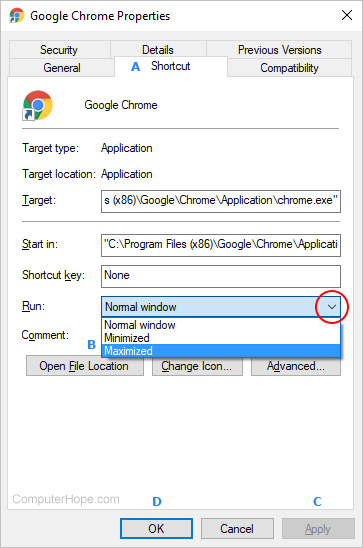
By default, Windows opens it's programs in a "Normal" window size, meaning its dimensions won't fill the entire screen. While users may easily maximize the window's size by clicking the middle icon in the upper right-hand corner, many don't like having to repeat the action every time they start a program. To force Windows to open a program in full-screen mode proceed through the steps in the following section.
  1. Right-click on any Windows shortcut and click Properties.
  2. In the Properties window, click the Shortcut tab (as shown below).
  3. Locate the Run: section, and then click the down arrow on the right-hand side.
  4. In the drop-down menu that appears, choose Maximized.
  5. Click Apply, and then OK. The program should now open in a full window.
Open shortcut window as maximized in Windows

Auto sum shortcut key in Microsoft Excel

Quickly create a Microsoft Excel formula to get the sum of all cells by highlighting the cells you want to know the value of and pressing Altand = together.

Top 10 free PC programs everyone should have

There are millions of free and open source projects available, many of them better than any commercially available product. Below is a short listing of what we think are the best out there, broken down into ten categories.

Antivirus and malware protection

Most PC users realize that they need protection on their computer or may have an installed antivirus program from their computer manufacturer. What most don't realize is that there are free programs that are just as good and in some cases better than the commercial products. Below are our recommendations.
Antivirus program: Avast!
Malware and Spyware protection: Malwarebytes

Backup solutions

There are dozens of free and commercially available backup programs for computers. Unfortunately, many of those backups are stored locally, meaning if your house were to catch fire, get robbed, or if you lost your backup discs, all your data would be lost. To avoid loss of important data, we suggest users use online backup services.
Online backup solution: Mozy or Dropbox

Browsers

Although Microsoft Internet Explorer comes pre-installed on Windows computers. There are several excellent free alternatives that everyone should try. These free alternatives can often be faster, have more options, and in many cases be more secure than Internet Explorer.
Internet Browser: Mozilla Firefox or Google Chrome

Compression utility

When downloading files on the Internet you'll eventually encounter a .zip, .rar, or other compressed file. Dealing with these files can be easy with our below free file compression utility.
File compression utility: 7-Zip

Disc ripper and creation utility

Creating an audio or data CD/DVD, ripping the data from an audio CD, or creating a CD from a .ISO file can also be done freely using our below free recommendation.
CD burner utility: CDBurnerXP

E-mail

E-mail is yet another service that can be done freely. Most users today use online e-mail solutions like the one listed below. However, for those still using an e-mail client such as Microsoft Outlook we strongly suggest one or both of the below suggestions.
E-mail client: Mozilla Thunderbird
Online e-mail: Gmail

FTP, SFTP, and SSH Utility

Users who maintain their own web page or need to upload or download files to or from a server have to use an FTP utility or an SSH client. There are many commercial programs capable of doing this but our below free recommendations beats them all.
FTP client: Filezilla
SSH client: MobaXterm and Putty

Image editor, paint program, and picture organizer

There are many great free solutions for editing, creating, and organizing your images on your computer. Many of the programs capable of doing these tasks can be several hundred dollars, but all of the below programs are completely free.
Image editor: GIMP
Paint program: Paint.net
Picture organizer: Google Photos

Multimedia

There are dozens of different multimedia programs with different capabilities and limitations. Below are our top free multimedia programs for watching video files and recording audio.
Audio editing and creating tool: Audacity
Video and DVD Player: VLC and MPC-HC

Office Suite

An Office suite such as Microsoft Office is often one of the most expensive programs that a user can install on their computer. Why install these expensive programs when there are free solutions that are just as good.
Office suite: OpenOffice


Notepad and Source code editor: Notepad++

Top 10 computer mouse tips everyone should know

Most computer users don't take full advantage of the computer Mouse. Below are computer mouse tips and secrets that help you get the full potential of your computer mouse and increase your overall productivity while on the computer.

Shift key and mouse click

Many text editors and programs allow you to highlight all or portions of text using the Shift keyand the mouse. For example, click at the beginning of the text in the below text box. Hold down the Shift key, scroll to the bottom, and click at the end of the text to highlight all of the text.

Bonus Tip: Holding down the Alt key while dragging and highlighting text in a text editor allows you to selectively highlight text. Highlighting text this way is useful if the paragraph or other text is in a column. Note: This tip does not work in the above box and has to be done in a text editor or word processor.

Take full advantage of the scroll wheel

Today, everyone is familiar with a mouse wheels ability to scroll up and down on a page. However, this wheel can also do so much more, below are just a few examples.
  • The mouse wheel is not just a wheel. It can also be used as a button. Pressing down on the wheel will acts like a third mouse button. The wheel button can be used to open a web page in a tab by clicking the wheel on any link and can also be used to close a tab by clicking the wheel on any open tab.
  • Zoom in and Out on a web page, word document, excel spreadsheet, etc. by holding down the Ctrl key and scrolling up to zoom in and down to zoom out.
  • Hold down the Shift key and scroll down in most Internet browsers to go back to the previous web page.
  • Some mouse wheels can be pushed left or right to also move back and forward between web pages.

Select with double and triple click

Any word can be selected by double-clicking the word. If you want to highlight the whole paragraph or sentence, click the mouse button three times on any word. Try it now on this paragraph by clicking three times fast on any word in the paragraph.
Bonus Tip: If you double-click and then drag your mouse, it will highlight one word at a time.

Use the right-click

Right-click menuTake full advantage of the right-click any time you highlight text or want to view the properties of an object. For example, if you highlight a file or text, you can right-click that highlighted item, copy it, and then right-click anywhere else to paste it.
Bonus Tip: If you highlight or select any file or text and then click and drag while holding the right mouse button, when you let go an option to move or copy that file is shown. This saves you the extra step of having to right-click where you want to paste the item.
Bonus Tip: While in a browser, pressing and holding Ctrl while clicking on any link opens a menu with options for that link.

Ctrl key and mouse click or highlight

While holding down the Ctrl key, you can left-click to select multiple objects or highlight multiple sections of text. For example, in the below selection box, if you wanted to highlight more than one of the items listed, you could hold down Ctrl and select each item you want highlighted.

Bonus Tip: Mozilla Firefox users can also hold down the Ctrl key and individually click on each cell in a table they want to copy. They can also hold down the Ctrl key and drag their mouse down a row to select just that row or text without selecting any of the other text in that table.

Use the mouse side buttons

Many new computer mice also have buttons on the side of the mouse. These buttons can be programmed to do anything. However, by default, the left-thumb button can be used to go back on a web page. Using the thumb button makes browsing the Internet more efficient since you do not need to move the mouse cursor to the browser's back arrow button to go back a page.

Use the Windows Snap To feature

Take full advantage of the Windows mouse Snap To feature, which will automatically move your mouse to buttons that appear in a dialog box. For example, if you delete a file or close a window, you may get a prompt asking you if you are sure you want to perform the task. With the Snap To feature enabled, the mouse cursor automatically moves to the Ok button, so all you have to do is click the left mouse button if you agree. This saves you the time of having to move the mouse cursor to the Ok button and then click Ok.
To enable this feature, open the Mouse properties under the Windows Control Panel and check the Snap To check box under the Pointer Options tab.
Bonus Tip: While changing this feature, we also suggest looking at other available options in the Mouse properties. For example, increasing the Motion speed can also help increase your productivity while using the mouse.

Manage the open window with the mouse

Double-click the top title bar of any window to maximize a window or, if it is already maximized, resize it to a smaller window. You can also double-click the icon for the window in the top-left corner of the window to close that window.

Move the mouse with your keyboard

Instead of using the mouse that came with your computer, you can also enable Windows to use the number pad as a mouse.

Customize your mouse

Finally, if you have a mouse with more than two buttons, installing the included mouse software allows you to customize the mouse even more. For example, if you don't use the side buttons to move back and forth in a web page, change it to something you do more often, such as switching between open windows or opening the calculator.

Top 10 Internet tips and tricks

Take advantage of tabbed browsing

Take full advantage of tabbed browsing on all Internet browsers. While reading an article or browsing a website, you may come across a link that interests you. Any link to another page can be opened in a new tab so it does not interrupt your reading. To perform this action, hold down the Ctrl key and left-click the link. If you have a mouse with a wheel, click the link by depressing the wheel instead of rolling it. Either of the methods opens a link in a new window.
Tip: To open an new blank tab, press Ctrl+T at the same time.

You don't need the http:// portion of a web page

When entering an Internet address you do not need to type http:// or even www. in the address. For example, if you wanted to visit Computer Hope you could just type computerhope.com and press enter. To make things even quicker, if you are visiting a .com address you can type computerhope and then press Ctrl+Enter to type out the full https://www.computerhope.com address.

Quickly move between the fields of a web page

If you are filling out an online form, e-mail, or other text field you can quickly move between each of the fields by pressing the Tab key or Shift+Tab to move back a field. For example, in the example form below you can click in the "First Name" field type anything and press tab to switch to the next field.


Tip: This tip also applies to buttons, if you press tab the buttons can also be highlighted. Once a button is highlighted press the spacebar or enter to push the button.
Tip: With a drop-down box that lists dozens of options you can press the first letter to scroll down to that letter. For example, click the drop down box below and then press "u" to quickly scroll to Utah.
Bonus Tip: You can also use the autofill feature to fill in common form fields.

Know your Internet browser shortcuts

Internet browsersThere are dozens of different shortcut keys that can be used with Internet browsers. Below are a few of our top suggested Internet browser shortcuts.
  • Press Alt+D or Ctrl+L to move the cursor into the address bar.
  • Hold down the Ctrl key and press the + or - to increase and decrease the size of text. Ctrl+0 will reset the text.
  • Press the backspace key or press Alt key + left arrow to go back a page.
  • Press F5 or Ctrl+R to refresh or reload a web page.
  • Press F11 to make the Internet browser screen full screen. Press F11 again to return to the normal view.
  • Press Ctrl+B to open your Internet bookmarks.
  • Press Ctrl+F to open the find box to search for text within the web page you are reading.

Protect yourself and avoid bad websites

Use Internet search engines to their full potential

Get the most out of every search result. If you are not finding what you want try surrounding the text in quotes. For example, searching for 'computer help' without quotes returns results with "computer" and "help" anywhere on the page. However, if you search for "computer help" with the quotes it only return pages with "computer" and "help" next to each other.
Tip: In every search box you can press enter instead of using the mouse to click the Search button.

Try alternative browsers

Most computer users use the default browser that comes included with the computer, with Microsoft Windows this is Internet Explorer. There are many great alternative browsers that are all free to download and use and may have features your current browser does not include. Below are a few of our favorites, try one or try them all.

Install plugins and add-ons

All of the above alternative browsers also have a large community of volunteers who develop add-ons and plugins that can be added into the browser. Each of these browsers has hundreds of add-ons that can do such things like the current weather in your browser window, changing its color, and adding additional functionality.

Make sure your browser and its plugins are up-to-date

An Internet browser can have many plugins that give it additional functionality. For example, Adobe Flash is a great way to bring movies and other animated content to the Internet. Keeping these plugins up-to-date is vital for your computer stability and also security. Using the below tool you can quickly verify if your plugins are up-to-date and get links to where to download the latest updates.

Use online services

There are hundreds of free online services that can help make using your computer easier, more productive, and more enjoyable. See our top 10 online services for a listing of our favorites.

View two windows side-by-side using Smart Window

Smart Window, or Snap, allows the user to view two windows side-by-side in Windows 7 without having to manually re-size either window. Smart Window is also useful if you don't want to use Alt-Tab to switch between 2 windows. If you are running an earlier version of Windows, such as Windows XP or Windows Vista, see the Split and arrange open windows tip for suggestions.
Windows 7 Smart Window
  1. Click and Drag on the top title bar of the first window so your mouse pointer hits either the left or right side of your screen. Let go of the window when you see the outline of the window re-size to ½ of the screen.
  2. Choose the other window you want to view on the side of the first window. Click and Drag the 2nd window to the opposite side of the screen until the mouse pointer hits the side of the screen and resizes to the other ½ of the screen.
These steps can also be done using the Windows key and the right and left arrow keys by doing the steps below.
  1. While pressing the Windows key on your keyboard, press either the Right or Left arrow to move the open window to either the left or right portion of the screen.
  2. Choose the other window you want to view to the side of the window in step one. When using the Windows key for this step, as described in step one above, use the opposite (right or left) arrow button that you used in step one.
There are three different ways to get out of this view. Below are some of the different methods to do so.
  1. Click and drag the window so the mouse pointer hits the top of the screen and let go to put the window back to regular size.
  2. If you just want to view a single window, click a blank spot at the top, and while holding the mouse button down, shake the window you want to view. The shaking action will minimize all other windows to the Taskbar. To reopen windows that were minimized, click and shake the window you are using again.
  3. Press the Windows key on your keyboard, and at the same time, press either the up arrow or the down arrow. The up arrow will maximize the window and the down arrow will minimize the window.

Top 10 unknown Google tricks

Below is a list of our top ten Google tricks many people who use Google don't know.

Find weather and movies

Type "weather" or "movies" followed by a zip code or city and state to display current weather conditions or movie theaters in your area. For example, typing weather 84101 gives you the current weather conditions for Salt Lake City, UT. Typing movies 84101 gives you a link for show times for movies in that area.

Definitions

Pull up the definition of the word by typing define followed by the word you want to define. For example, typing: define bravura would display the definition of that word.

Local search

Visit Google Local enter the area you want to search and the keyword of the place you want to find. For example, typing: restaurant at the above link would display local restaurants.

Phone number lookup

Enter a full phone number with area code to display the name and address associated with that phone number.

Track airline flight and packages

Enter the airline and flight number to display the status of an airline flight and it's arrival time. For example, type: delta 123 to display this flight information if available.
Google can also give a direct link to package tracking information if you enter a UPS, FedEx or USPS tracking number.

Translate

Translate text, a full web page, or search by using the Google Language Tools.

Pages linked to you

See what other web pages are linking to your website or blog by typing link: followed by your URL. For example, typing link:http://www.computerhope.com displays all pages linking to Computer Hope.

Find PDF results only

Add fileType: to your search to display results that only match a certain file type. For example, if you wanted to display PDF results only type: "dell xps" fileType:pdf -- this is a great way to find online manuals.

Calculator

Use the Google Search engine as a calculator by typing a math problem in the search. For example, typing: 100 + 200 would display results as 300.

Stocks

Quickly get to a stock quote price, chart, and related links by typing the stock symbol in Google. For example, typing: msft displays the stock information for Microsoft.

Cleaning the computer and its components

Cleaning your computer, components, and peripherals help keep everything in good working condition, helps prevent germs from spreading, and helps allow proper air flow. The picture shows a good example of just how dirty the inside of your computer case can get. Just looking at this picture it is immediately obvious that all the dust and dirt is going to prevent proper air flow and may even prevent the fan from working.

How often should I clean my computer?

The frequency of how often you should clean your computer varies on different factors. To help you determine how often you need to clean your computer, we created the checklist below. Check each of the boxes below that apply to your computer's conditions to help determine how often you should clean the computer.
Where is the computer located?
In a home environment
In a clean office environment
In construction or industry environment
In school environment
Computer environment
Have cat or dog in same building as computer
Smoke in same building as computer
Smoke next to computer
Computer is on floor
Room that the computer is in has carpet
Eat or drink by computer
Who uses it?
Adult (18 and older)
Young adults (ages 10-18) use computer
Pre-teen (younger than 10) use computer
More than one person uses computer
With what is checked above, clean your computer every  months.

General Cleaning Tips

Below is a listing of suggestions to follow when cleaning any computer components or peripherals as well as tips to help keep a computer clean.
  1. Never spray or squirt any liquid onto any computer component. If a spray is needed, spray the liquid onto a cloth.
  2. You can use a vacuum to suck up dirt, dust, or hair around the computer. However, do not use a vacuum inside your computer as it generates static electricity that can damage your computer. If you need to use a vacuum inside your computer, use a portable battery powered vacuum or try compressed air.
  3. When cleaning a component or the computer, turn it off before cleaning.
  4. Be cautious when using any cleaning solvents; some people have allergic reactions to chemicals in cleaning solvents, and some solvents can even damage the case. Try always to use water or a highly diluted solvent.
  5. When cleaning, be careful to not accidentally adjust any knobs or controls. Also, when cleaning the back of the computer, if anything is connected make sure not to disconnect the plugs.
  6. When cleaning fans, especially smaller fans, hold the fan or place something in-between the fan blades to prevent it from spinning. Spraying compressed air into a fan or cleaning a fan with a vacuum may cause damage or generate a back voltage.
  7. Never eat or drink around the computer.
  8. Limit smoking around the computer.

Cleaning Tools

Although computer cleaning products are available, you can also use household items to clean your computer and its peripherals. Below is a listing of items you may need or want to use while cleaning your computer.
  • Cloth - A cotton cloth is the best tool used when rubbing down computer components. Paper towels can be used with most hardware, but we always recommend using a cloth whenever possible. However, only use a cloth when cleaning components such as the case, a drive, mouse, and keyboard. You should not use a cloth to clean any circuitry such as the RAM or motherboard.
  • Water or rubbing alcohol - When moistening a cloth, it is best to use water or rubbing alcohol. Other solvents may be bad for the plastics used with your computer.
  • Portable Vacuum - Sucking the dust, dirt, hair, cigarette particles, and other particles out of a computer can be one of the best methods of cleaning a computer. However, do not use a vacuum that plugs into the wall since it creates lots of static electricity that can damage your computer.
  • Cotton swabs - Cotton swaps moistened with rubbing alcohol or water are excellent tools for wiping hard to reach areas in your keyboard, mouse, and other locations.
  • Foam swabs - Whenever possible, it is better to use lint-free swabs such as foam swabs.
Tip: See our computer tools page for a list of other tools every technician should have.

Case Cleaning

Why? Cleaning your case keeps the appearance of the computer looking new. While cleaning, if you see ventilation slots, these can be cleaned or cleared to help keep a steady airflow into the computer and keep all components cool.
Procedure: The plastic case that houses the PC components can be cleaned with a slightly damp lint-free cloth. For stubborn stains, add a little household detergent to the cloth. You should not use a solvent cleaner on plastics.
Make sure all vents and air holes are hair and lint free by rubbing a cloth over the holes and vents. It is also helpful to take a vacuum around each of the hole, vents, and crevices on the computer. It is safe to use a standard vacuum when cleaning the outside vents of a computer.
If you are looking for steps on cleaning the inside of the computer, see the motherboard cleaning section.

CD-ROM, DVD, and Other Disc Drive Cleaning

Why? A dirty CD-ROM drive or other disc drives can cause read errors when reading discs. These read errors could cause software installation issues or issues while running the program.
Procedure: To clean the CD-ROM drive we recommend purchasing a CD-ROM cleaner from your local computer retailer. Using a CD-ROM cleaner should sufficiently clean the CD-ROM laser from dust, dirt, and hair.
You can also use a cloth dampened with water to clean the tray that ejects from the drive. However, make sure that after the tray is cleaned that it completely dry before putting the tray back into the drive.
See the Disc cleaning recommendation for further steps on cleaning each of your CDs.

CD and DVD Disc Cleaning

Why? Dirty CDs can cause read errors or cause CDs to not work at all.
Procedure: Use a cleaning kit or damp clean cotton cloth to clean CDs, DVDs, and other discs. When cleaning a disc wipe against the tracks, starting from the middle of the CD or DVD and wiping towards the outer side as shown in the picture below. Never wipe with the tracks; doing so may put more scratches on the disc.
Cleaning a CD and DVD disc
Tip: If the substance on a CD cannot be removed using water, pure alcohol can also be used.

Hard Drive Cleaning

Why? Computer hard drives cannot be cleaned. However, they can be cleaned with software utilities to help it run fast and efficiently. Utilizing these utilities prevent the hard drive from slowing down.
Procedure: Refer to our basic troubleshooting section for your operating system for steps that can be done to help improve the performance of your computer.

Headphones Cleaning

Why? Headphones and headsets can be used by many different people and may need to be frequently cleaned to help prevent the spreading of germs and head lice.
Procedure: If the headphones being used are plastic or vinyl, moisten a cloth with warm water and rub the head and earpieces of the headphones.
Note: If the headphones are being used for a library or school, do not use any disinfectant or cleaning solvent since some people can have allergic reactions to the chemicals they contain.
Headphones that have cushions also have the availability of having the cushions replaced. Replacing these cushions can also help keep the headphones clean.
Finally, in regards to headphones spreading head lice. If different students use the same headphones, have students use their own headphones, place bags over the headphones, or using headphones that can be wiped with warm water after each use.

Keyboard Cleaning

These steps are for cleaning a desktop keyboard. See the cleaning a laptop keyboardpage for laptop steps.
Dust, dirt, and bacteria
Dirt and hair under a keyboard keyThe computer keyboard is usually the most germ infected items in your home or office. A keyboard may even contain more bacteria than your toilet seat. Cleaning it helps remove any dangerous bacteria and keeps the keyboard working properly.
Procedure: Before cleaning the keyboard first turn off the computer or if you are using a USB keyboard unplug it. Not unplugging the keyboard can cause other computer problems as you may press keys that cause the computer to perform a task you do not want it to perform.
Many people clean the keyboard by turning it upside down and shaking. A more efficient method is to use compressed air. Compressed air is pressurized air contained in a can with a very long nozzle. To clean a keyboard using compressed air aim between the keys and blow away all of the dust and debris that has gathered there. A vacuum cleaner can also be used, but make sure the keyboard does not have loose "pop off" keys can be sucked up by the vacuum.
If you want to clean the keyboard more extensively, remove the keys from the keyboard.
After the dust, dirt, and hair have been removed. Spray a disinfectant onto a cloth or use disinfectant cloths and rub each of the keys on the keyboard. As mentioned in our general cleaning tips, never spray any liquid onto the keyboard.
Substance spilled into the keyboard
If the keyboard has anything spilled on it (e.g. pop, cola, Pepsi, Coke, beer, wine, coffee, and milk), not taking the proper steps can destroy the keyboard.
Procedure: Below is recommendations that can help prevent a keyboard from becoming bad after something has spilled into the keys.
If anything is spilled onto the keyboard turn the computer off immediately or at the very least disconnect the keyboard from the computer. Once done flip the keyboard over to prevent the substance from penetrating circuits. While the keyboard is upside down, shake the keyboard over a surface that can be cleaned later. While still upside down, use a cloth to start cleaning the keys. After cleaned leave the keyboard upside down for at least one night allowing it to dry. Once dry, continue cleaning the keyboard with any remaining substance.
If after cleaning the keyboard keys are sticking, remove the keys and clean below the keys and the bottom portion of the key.
Finally, if the keyboard still works but remains dirty or sticky before discarding the keyboard as a last resort try washing the keyboard in the dishwasher.
If after doing all the above steps the keyboard still does not work we recommend buying a new keyboard.

LCD/LED Cleaning

Why? Dirt, dust, and fingerprints can cause the computer screen to be difficult to read.
Procedure: Unlike a CRT computer monitor, the LCD or LED monitor is not glass and requires special cleaning procedures.
When cleaning the LCD or LED screen, it is important to remember to not spray any liquids onto the screen directly. Press gently while cleaning and do not use a paper towel, since it can scratch the screen.
To clean the LCD or LED screen, use a non-rugged microfiber cloth, soft cotton cloth, or Swiffer duster. If a dry cloth does not completely clean the screen, you can apply rubbing alcohol to the cloth and wipe the screen with a damp cloth. Rubbing alcohol is used to clean LCD and LED monitors before it leaves the factory.

CRT Monitor Cleaning

Tip: This section is for CRT computer monitors. If you have a flat screen monitor, see the LCD/LED cleaning section.
Why? Dirt, dust, and fingerprints can cause the computer screen to be difficult to read.
Procedure: A glass monitor screen can be cleaned with ordinary household glass cleaner. Be sure to unplug the power cord from the monitor and spray the cleaner onto a lint-free cloth so the fluid does not leak into the electrical components inside the monitor. Vacuum off any dust that has settled on top of the monitor and make sure no books or papers are covering the air vents. Obstructed monitor vents can cause the monitor to overheat or even catch on fire.
Caution: We suggest only using a cloth dampened with water when cleaning non-glass monitors or any anti-glare screens. Using ordinary household glass cleaner on special screens, especially cleaners with ammonia, can remove anti-glare protection or other special surfaces.
Other good cleaning solutions
  • Microfiber Towels
  • Swiffer Dusters
Related pages

Motherboard Cleaning

Why? Dust and especially particles of cigarette smoke can build up and corrode circuitry, causing various problems such as computer lockups.
Caution: When inside the computer, take the necessary ESD precautions and try to avoid unplugging any cables or other connections.
Procedure: Our recommendation when cleaning the motherboard from dust, dirt, or hair is to use compressed air. When using compressed air, hold it in the upright position to prevent any of the chemicals from coming out of the container, which may damage or corrode the motherboard or other components. Also, ensure when using compressed air that you always blow the dust or dirt away from the motherboard or out of the case.
Another good alternative to compressed air is a portable battery powered vacuum. Portable vacuums can effectively remove the dust, dirt, and hair from the motherboard completely and prevent it from getting trapped within the case.
Warning: Never use an electricity powered vacuum, as it can cause lots of static electricity that can damage the computer. When using a vacuum, keep it a couple inches away from the motherboard and all other components to prevent damage and anything from being sucked into the vacuum (e.g. jumpers or small cables).
Tip: When cleaning the inside of the case, also look at any fans or heat sinks. Dust, dirt, and hair can collect around these components the most.

Mouse Cleaning

Optical or Laser Mouse
Why? A dirty optical or laser mouse can cause the mouse cursor to be difficult to move or move erratically.
Procedure: Use a can of compressed air that is designed for use with electronic equipment, spraying around the optical sensor on the bottom of the mouse. Blowing air on the bottom of the mouse clears away any dirt, dust, hair, or other obstructions that may be blocking the optical sensor.
Avoid using any cleaning chemicals or wiping a cloth directly on the optical sensor, as it could scratch or damage the optical sensor.
Optical-Mechanical (Ball) Mouse
Why? A dirty optical-mechanical mouse (mouse with a ball) can cause the mouse to be difficult to move, as well as cause strange mouse movement.
Procedure: To clean the rollers of an optical-mechanical mouse, you must first remove the bottom cover of the mouse. To do this, examine the bottom of the mouse to see what direction to rotate the cover. As you can see in the below illustration, the mouse cover must be moved counter clockwise. Place two fingers on the mouse cover, push down and rotate in the direction of the arrows.
Rotate bottom of mouse cover
Computer mouse with ball removedOnce the cover has rotated about an inch, rotate the mouse into its normal position, covering the bottom of the mouse with one hand. The bottom should then fall off, including the mouse ball. If the cover does not fall off, try shaking the mouse gently.
Once the bottom cover and the ball is removed, you should be able to see three rollers located inside the mouse. Use a cotton swab, finger, or fingernail to remove any substances on the rollers. Usually, there is a small line of hair and dirt in the middle of the roller. Remove as much of this substance as possible.
Once you have removed as much dirt and hair as possible, set the ball back within the mouse and place the cover back on.
If the mouse still has the same problems, repeat the above process. If after several attempts the mouse is still having the same problems, your mouse has other hardware issues and should be replaced.
Note: Cleaning your mouse pad with a damp cloth can also help improve a computer's mouse movement.
Any Type of Mouse
Why? To help keep the mouse clean and germ-free, it can be helpful to clean the mouse.
Procedure: Use a cloth moistened with rubbing alcohol or warm water and rub the surface of the mouse and each of its buttons.

Printer Cleaning

Why? Cleaning the outside of a printer can help keep the printer's appearance looking good and if used by many different people keep the printer clean of germs.
Procedure: First, make sure to turn off the printer before cleaning it. Dampen a cloth with water or rubbing alcohol and wipe the case and each of the buttons or knobs on the printer. As mentioned earlier, never spray any liquid directly onto the printer.
Why? Some printers require the inside to be cleaned to help keep the printer running smoothly.

Scanner Cleaning

Why? Flatbed scanners commonly become dirty with dust, fingerprints, and hair. When the scanner is dirty, the images may have distortions.
Procedure: Clean a flatbed scanner's surface by spraying a window cleaner onto a paper towel or cotton cloth and wipe the glass until clean. As mentioned earlier, never spray a liquid directly onto the component.
The same towel or cotton cloth can also be used to clean the outside of the scanner.

Miscellaneous Cleaning Steps

Below are a listing of miscellaneous computer hardware that is rarely used today, but kept on this page people working on older computers and need to clean these devices.
Floppy drive cleaning
Why? Dirty read/write heads on the floppy drive can cause errors during the reading or writing process.
Procedures: The floppy drive can be cleaned two different ways. The first method of cleaning a floppy drive is to purchase a kit at your local retail store designed to clean the read/write heads on your floppy drive.
The second method of cleaning the floppy drive is only recommended for experienced computer users. Open the floppy drive casing and physically swab the read/write heads with a lint-free foam swab soaked in pure alcohol, free-on, or trichloroethane. When performing these steps, be extremely careful when cleaning the heads to ensure that you do not lock them out of alignment causing the floppy drive to not work. To help prevent the heads from becoming out of alignment, use a dabbing motion lightly putting the swab on the head and removing it, do not perform a side-to-side motion with the swab.

https://youtu.be/oACiAHAACiU